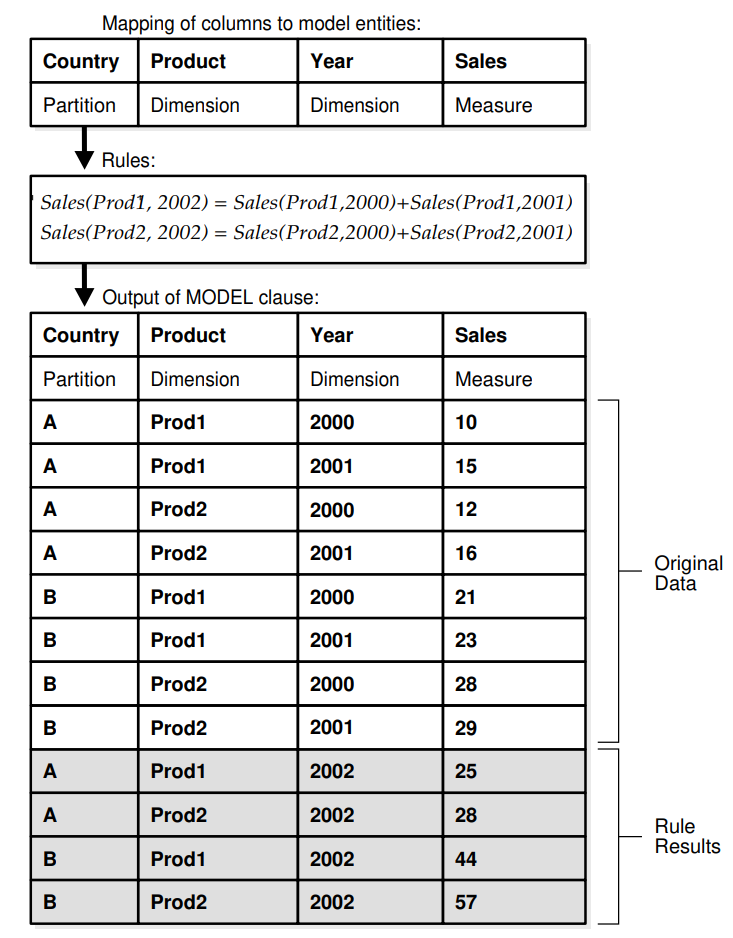
The MODEL clause enables you to create a multidimensional array by mapping the columns of a query into three groups: partitioning, dimension, and measure columns.
These elements perform the following tasks:
- Partition columns define the logical blocks of the result set in a way similar to the partitions of the analytical functions described in SQL for Analysis and Reporting.
Rules in the MODEL clause are applied to measures cells of each partition independent of other partitions. Thus, partitions serve as a boundary point for parallelizing the MODEL computation. - Dimension columns define the multi-dimensional array and are used to identify measure cells within a partition. By default, a full combination of dimensions should identify just one cell in a partition. In default mode, they can be considered analogous to the key of a relational table.
- Measures are equivalent to the measures of a fact table in a star schema. They typically contain numeric values such as sales units or cost. Each cell is accessed by specifying its full combination of dimensions. Note that each partition may have a cell that matches a given combination of dimensions.
The MODEL clause enables you to specify rules to manipulate the measure values of the cells in the multi-dimensional array defined by partition and dimension columns. Rules access and update measure column values by directly specifying dimension values. The references used in rules result in a highly readable model. Rules are concise and flexible, and can use wild cards and looping constructs for maximum expressiveness. Oracle Database evaluates the rules in an efficient way, parallelizes the model computation whenever possible, and provides a seamless integration of the MODEL clause with other SQL clauses. The MODEL clause, thus, is a scalable and manageable way of computing business models in the database.
To create rules on these multidimensional arrays, you define computation rules expressed in terms of the dimension values. The rules are flexible and concise, and can use wild cards and FOR loops for maximum expressiveness. Calculations built with the MODEL clause improve on traditional spreadsheet calculations by integrating analyses into the database, improving readability with symbolic referencing, and providing scalability and much better manageability.
.
UPSERT, UPSERT ALL, UPDATE
Using the UPSERT option, which is the default, you can create cell values that do not exist in the input data. If the cell referenced exists in the data, it is updated. If the cell referenced does not exist in the data, and the rule uses appropriate notation, then the cell is inserted.
The UPSERT ALL option enables you to have UPSERT behavior for a wider variety of rules.
The UPDATE option, on the other hand, would never insert any new cells.
.
Symbolic Dimension Reference and Positional Dimension Refrerence
A symbolic dimension reference is one in which DIMENSION BY key values are specified with a boolean expression. For example, the cell reference sales[year >= 2001] has a symbolic reference on the DIMENSION BY key year and specifies all cells whose year value is greater than or equal to 2001. An example of symbolic references on product and year dimensions is:
sales[product = 'Bounce', year >= 2001]
A positional dimension reference is a constant or a constant expression specified for a dimension. For example, the cell reference sales['Bounce'] has a positional reference on the product dimension and accesses sales value for the product Bounce. The constants in a cell reference are matched to the column order specified for DIMENSION BY keys.
.
Using the SQL MODEL clause to Define Inter-Row Calculations
MODEL

[<global reference options>]

[<reference models>]

[MAIN <main-name>]

[PARTITION BY (<cols>)]

DIMENSION BY (<cols>)

MEASURES (<cols>)

[<reference options>]

[RULES] <rule options> (<rule>, <rule>,.., <rule>)

<global reference options> ::= <reference options> <ret-opt> <ret-opt> ::= RETURN {ALL|UPDATED} ROWS <reference options> ::= [IGNORE NAV | [KEEP NAV] [UNIQUE DIMENSION | UNIQUE SINGLE REFERENCE]

<rule options> ::= [UPDATE | UPSERT | UPSERT ALL] [AUTOMATIC ORDER | SEQUENTIAL ORDER] [ITERATE (<number>) [UNTIL <condition>]]

<reference models> ::= REFERENCE ON <ref-name> ON (<query>) DIMENSION BY (<cols>) MEASURES (<cols>) <reference options>
MODEL
[<global reference options>]
[<reference models>]
[MAIN <main-name>]
[PARTITION BY (<cols>)]
DIMENSION BY (<cols>)
MEASURES (<cols>)
[<reference options>]
[RULES] <rule options> (<rule>, <rule>,.., <rule>)
<global reference options> ::= <reference options> <ret-opt> <ret-opt> ::= RETURN {ALL|UPDATED} ROWS <reference options> ::= [IGNORE NAV | [KEEP NAV] [UNIQUE DIMENSION | UNIQUE SINGLE REFERENCE]
<rule options> ::= [UPDATE | UPSERT | UPSERT ALL] [AUTOMATIC ORDER | SEQUENTIAL ORDER] [ITERATE (<number>) [UNTIL <condition>]]
<reference models> ::= REFERENCE ON <ref-name> ON (<query>) DIMENSION BY (<cols>) MEASURES (<cols>) <reference options>

Note that the RETURN UPDATED ROWS keyword limits the results to just those rows that were created or updated in the query. Using this clause is a convenient way to limit result sets to just the newly calculated values.
SELECT country, prod, year, sales
FROM sales_view
WHERE country IN ('Italy','Japan')
   MODEL RETURN UPDATED ROWS
     PARTITION BY (country)
     DIMENSION BY (prod, year)
     MEASURES     (sale sales)
     RULES (
      sales['Bounce',    2002] = sales['Bounce', 2001] + sales['Bounce', 2000],
      sales['Y Box',     2002] = sales['Y Box',  2001],
      sales['2_Products',2002] = sales['Bounce', 2002] + sales['Y Box',  2002] )
ORDER BY country, prod, year;
Note that the values for 2_Products are derived from the results of the two prior rules, so those rules must be executed before the 2_Products rule.
.
.
SELECT country, prod, year, sales
FROM sales_view
WHERE country='Italy'
MODEL RETURN UPDATED ROWS
   PARTITION BY (country)
   DIMENSION BY (prod, year)
   MEASURES     (sale sales)
   RULES (
   sales[prod='Bounce', year>1999] = 10 )
ORDER BY country, prod, year
Update the SALES for the product Bounce in all years after 1999 where the values are recorded for Italy and set them to 10. To do so, use a “symbolic cell reference”. The value for the cell reference is matched to the appropriate dimension using Boolean conditions. You can use all the normal operators such as < , > , IN and BETWEEN
In this case the query looks for product value equal to Bounce and any year value greater than 1999. This shows how a single rule can access multiple cells.
.
.
SELECT country, prod, year, sales
FROM sales_view WHERE country IN ('Italy','Japan')
MODEL RETURN UPDATED ROWS
   PARTITION BY (country)
   DIMENSION BY (prod, year)
   MEASURES     (sale sales)
   RULES (
   sales['Bounce', 2002] = sales['Bounce', year = 2001] ,
      --positional notation: can insert new cell

   sales['Y Box', year>2000] = sales['Y Box', 1999],
     --symbolic notation: can update existing cell

   sales['2_Products', 2005] = sales['Bounce', 2001] + sales['Y Box', 2000]
   )
     --positional notation: permits insert of new cells for new product

ORDER BY country, prod, year
Single query to update the sales for several products in several years for multiple countries, and you also want it to insert new cells. By placing several rules into one query, processing is more efficient because it reduces the number of times needed to access the data. It also allows for more concise SQL, which supports higher developer productivity.
.
Using Multi-Cell References on the Right Side of a Rule
The earlier examples had multi-cell references only on the left side of the rules. If you want to refer to multiple cells on the right side of a rule, you can use multi-cell references on the right side of rules in which case an aggregate function needs to be applied on them to convert them to a single value.
SELECT country, prod, year, sales
FROM sales_view
WHERE country='Italy'
MODEL RETURN UPDATED ROWS
   PARTITION BY (country)
   DIMENSION BY (prod, year)
   MEASURES     (sale sales)
   RULES (
   sales['Bounce', 2005] = 100 + max(sales)['Bounce', year BETWEEN 1998 AND 2002]
   )
ORDER BY country, prod, year
Forecast the sales of Bounce in Italy for the year 2005 to be 100 more than the maximum sales in the period 1999 to 2001. To do so, you need to use the BETWEEN clause to specify multiple cells on the right side of the rule, and these are aggregated to a single value with the MAX() function.
.
.
Using the CV() Function and the ANY Wildcard
The CV() function is a very powerful tool that makes rule creation highly productive. CV() is used on the right side of rules to copy the current value of a dimension specified on the left side. It is helpful wherever the left side specifications refer to multiple cells. In terms of relational database concepts, it acts like a join operation.
CV() allows for very flexible expressions. For instance, by subtracting from the CV(year) value you can refer to other rows in the data set. If you have the expression ‘CV(year) -2’ in a cell reference, you can access data from two years earlier. CV() functions are most commonly used as part of a cell reference, but they can also be used outside a cell reference as freestanding elements of an expression.
-- The CV() function provides the current value of a DIMENSION BY key
-- of the cell currently referenced on the left side.

-- The CV() function takes a dimension key as its argument.
-- It is also possible to use CV() without any argument as in CV()
-- and in which case, positional referencing is implied.

SELECT country, rod, year, sales
FROM sales_view
WHERE country='Italy'
MODEL RETURN UPDATED ROWS
   PARTITION BY (country)
   DIMENSION BY (prod, year)
   MEASURES     (sale sales)
   RULES (
   sales['Bounce', year BETWEEN 1995 AND 2002] =
      sales['Mouse Pad', cv(year)] + 0.2 * sales['Y Box', cv(year)]
    )
ORDER BY country, prod, year
Update the sales values for Bounce in Italy for multiple years, using a rule where each year’s sales is the sum of Mouse Pad sales for that year, plus 20% of the Y Box sales for that year.
.
Calculate the year-over-year percent growth in sales for products Y Box, Bounce and Mouse Pad in Italy
SELECT country, prod, year, sales, growth
FROM sales_view
WHERE country='Italy'
MODEL RETURN UPDATED ROWS
   PARTITION BY (country)
   DIMENSION BY (prod, year)
   MEASURES     (sale sales, 0 growth)
   RULES (
   growth[prod in ('Bounce','Y Box','Mouse Pad'), year between 1998 and 2001] =
                         100* (sales[cv(prod), cv(year)] -
                         sales[cv(prod), cv(year) -1] ) /
                         sales[cv(prod), cv(year) -1] )
ORDER BY country, prod, year
.
Wild card operator ANY keyword
A wild card operator is very useful for cell specification, and you can use the ANY keyword for this purpose. You can use it with the previous example to replace the specification year between 1998 and 2001 as shown below.
ANY can be used in cell references to include all dimension values including NULLs. In symbolic reference notation, use the phrase IS ANY. Note that the ANY wildcard prevents cell insertion when used with either positional or symbolic notation.
-- Returns same data as previous query
SELECT country, prod, year, sales, growth
FROM sales_view
WHERE country='Italy'
MODEL RETURN UPDATED ROWS
   PARTITION BY (country)
   DIMENSION BY (prod, year)
   MEASURES     (sale sales, 0 growth)
   RULES (
   growth[prod in ('Bounce','Y Box','Mouse Pad'), ANY] =
   100* (sales[cv(prod), cv(year)] -
   sales[cv(prod), cv(year) -1] ) /
   sales[cv(prod), cv(year) -1] )
ORDER BY country, prod, year
.
Coding FOR Loops: A Concise Way to Specify New Cells
The MODEL clause provides a FOR construct that can be used inside rules to express computations more concisely. The FOR construct is allowed on both sides of rules.
RULES
   (
   sales['Mouse Pad', 2005] = 1.3 * sales['Mouse Pad', 2001],
   sales['Bounce', 2005] = 1.3 * sales['Bounce', 2001],
   sales['Y Box', 2005] = 1.3 * sales['Y Box', 2001]
   )
Lets say we have the (above) rule that estimate the sales of several products for year 2005 to be 30% higher than their sales for year 2001
By using positional notation on the left side of the rules, you ensure that cells for these products in the year 2005 will be inserted if they are not previously present in the array. This is rather bulky because you may require as many rules as there are products. If you work with dozens of products, it becomes an unwieldy approach.
You can reword this computation so it is concise and has exactly the same behavior:
SELECT country, prod, year, sales
FROM sales_view
WHERE country='Italy'
  MODEL RETURN UPDATED ROWS
    PARTITION BY (country)
    DIMENSION BY (prod, year)
    MEASURES     (sale sales)
    RULES (
     sales[FOR prod in ('Mouse Pad', 'Bounce', 'Y Box'), 2005] =
                                       1.3 * sales[cv(prod), 2001]
    )
ORDER BY country, prod, year;
NOTE: If you write a specification similar to the one above, but without the FOR keyword, only cells that already exist would be updated, and no new cells would be inserted.
Note that the MODEL clause has limits on the number of rules supported in a single model, and FOR loops can create enough virtual rules to reach these limits.
.
If you know that the needed dimension values come from a sequence with regular intervals, you can use another form of the FOR construct:
FOR dimension FROM value1 TO value2 [INCREMENT | DECREMENT] value3
This specification results in values between value1 and value2 by starting from value1 and incrementing (or decrementing) by value3.
.
.
Understanding the Order of Evaluation of Rules
By default, rules are evaluated in the order in which they appear in the MODEL clause. An optional keyword, SEQUENTIAL ORDER, can be specified in the MODEL clause to make such an evaluation order explicit. SQL models with a sequential rule order of evaluation are called Sequential Order models.
To have models calculated so that all rule dependencies are considered and processed in correct order, use the AUTOMATIC ORDER keywords. When a model has a large number of rules, it may be more efficient to use the AUTOMATIC ORDER option than to manually check that the rules are listed in a logically correct sequence. This enables more productive development and maintenance of models.
SELECT country, prod, year, sales
FROM   sales_view
WHERE  country IN  ('Italy','Japan')
  MODEL   RETURN UPDATED ROWS
    PARTITION BY (country)
    DIMENSION BY (prod, year)
    MEASURES     (sale sales)
    RULES SEQUENTIAL ORDER  (
     sales['2_Products', 2002] = sales['Bounce', 2002] + sales['Y Box', 2002],
     sales['Bounce',     2002] = sales['Bounce', 2001] + sales['Bounce', 2000],
     sales['Y Box',      2002] = sales['Y Box',  2001]
     )
ORDER BY country, prod, year
To ensure that the rules will be executed in correct sequence so that no dependencies are missed, use the AUTOMATIC ORDER keywords. The example above contains three rules to illustrate this concept.
Above query returns the results for the newly created 2_Products product and calculates the values for Bounce and Y Box before 2_Products
 Nasar's Blog